


Overview
I run local LLMs for several reasons:
- Development
- Experimentation
- Data privacy
- Environmental impact
- Self sufficiency
- I like to own hardware
No matter what the reason, running AI models locally is not complicated to get started. It can be complex, but that is a choice. There are a couple of projects out there that make pretty straight forward to get started
- Ollama for running models
- Models can be inferenced from command line or via API
- Compatible with GPU or CPU
- OpenWebUI
- Full featured chat front end
- Can be single user or multi-user
- Easy setup using docker
This will provide a basic chat setup with saved conversations and the ability to change to any model installed in ollama. It also provides quick access to many variables such as temperature and top_k for experimentation or adjustment.
I am using a server setup with 2 Nvidia Tesla P40 GPUs. This has very little impact on the setup, this could be done with a single GPU system as well. I will address running the Ollama server from one IP and OpenWebUI from another, as well as running from the same IP. This assumes Linux as the host OS.
Ollama
Installation of ollama is pretty straight forward. One command will download an install ollama on the system, this is not distribution specific as it is a script. I installed this on a VM which does not have GPU, so the ‘WARNING: No NVIDIA/AMD GPU detected. Ollama will run in CPU-only mode.‘ popped up after install. Ollama will automatically detect if there is GPU or not. It is possible to run models on CPU. The Ollama systemd unit, which starts the API server, will start following install, but the preset is disabled which means it won’t automatically start after reboot. Run sudo systemctl enable ollama to set it to start automatically.
bean@peaberry ~ $ curl -fsSL https://ollama.com/install.sh | sh
>>> Installing ollama to /usr/local
>>> Downloading ollama-linux-amd64.tar.zst
######################################################################## 100.0%
>>> Creating ollama user...
>>> Adding ollama user to render group...
>>> Adding ollama user to video group...
>>> Adding current user to ollama group...
>>> Creating ollama systemd service...
>>> Enabling and starting ollama service...
Created symlink '/etc/systemd/system/default.target.wants/ollama.service' → '/etc/systemd/system/ollama.service'.
>>> The Ollama API is now available at 127.0.0.1:11434.
>>> Install complete. Run "ollama" from the command line.
WARNING: No NVIDIA/AMD GPU detected. Ollama will run in CPU-only mode.

bean@peaberry ~ $ systemctl status ollama
● ollama.service - Ollama Service
     Loaded: loaded (/etc/systemd/system/ollama.service; enabled; preset: disabled)
     Active: active (running) since Tue 2026-03-10 13:23:38 CDT; 14s ago
 Invocation: d2601f83648042cca4e3fb06e782d35f
   Main PID: 1226 (ollama)
      Tasks: 9 (limit: 4671)
     Memory: 67.4M (peak: 79.9M)
        CPU: 622ms
     CGroup: /system.slice/ollama.service
             └─1226 /usr/local/bin/ollama serve

Mar 10 13:23:39 peaberry ollama[1226]: time=2026-03-10T13:23:39.594-05:00 level=INFO source=routes.go:1660>
Mar 10 13:23:39 peaberry ollama[1226]: time=2026-03-10T13:23:39.595-05:00 level=INFO source=images.go:477 >
Mar 10 13:23:39 peaberry ollama[1226]: time=2026-03-10T13:23:39.595-05:00 level=INFO source=images.go:484 >
Mar 10 13:23:39 peaberry ollama[1226]: time=2026-03-10T13:23:39.598-05:00 level=INFO source=routes.go:1713>
Mar 10 13:23:39 peaberry ollama[1226]: time=2026-03-10T13:23:39.605-05:00 level=INFO source=runner.go:67 m>
Mar 10 13:23:39 peaberry ollama[1226]: time=2026-03-10T13:23:39.646-05:00 level=INFO source=server.go:430 >
Mar 10 13:23:39 peaberry ollama[1226]: time=2026-03-10T13:23:39.967-05:00 level=INFO source=server.go:430 >
Mar 10 13:23:40 peaberry ollama[1226]: time=2026-03-10T13:23:40.126-05:00 level=INFO source=runner.go:106 >
Mar 10 13:23:40 peaberry ollama[1226]: time=2026-03-10T13:23:40.127-05:00 level=INFO source=types.go:60 ms>
Mar 10 13:23:40 peaberry ollama[1226]: time=2026-03-10T13:23:40.127-05:00 level=INFO source=routes.go:1763>

bean@peaberry ~ $ sudo systemctl enable ollama
Ollama uses port 11434 and default is to serve to localhost (127.0.0.1) only. Shown below is the failure to connect to the port when using the machine’s IP address but the same command run with localhost succeeds.
bean@peaberry ~ $ ip addr show dev enp3s0
2: enp3s0: <BROADCAST,MULTICAST,UP,LOWER_UP> mtu 1450 qdisc fq_codel state UP group default qlen 1000
    link/ether fa:16:3e:d5:92:8b brd ff:ff:ff:ff:ff:ff
    altname enxfa163ed5928b
    inet 172.22.10.63/24 metric 1024 brd 172.22.10.255 scope global dynamic enp3s0
       valid_lft 69573sec preferred_lft 69573sec
    inet6 fe80::f816:3eff:fed5:928b/64 scope link proto kernel_ll
       valid_lft forever preferred_lft forever

bean@peaberry ~ $ ss -tln | grep 11434
LISTEN 0      4096       127.0.0.1:11434      0.0.0.0:*

bean@peaberry ~ $ nc -vz 172.22.10.63 11434
nc: connect to 172.22.10.63 port 11434 (tcp) failed: Connection refused

bean@peaberry ~ $ nc -vz localhost 11434
nc: connect to localhost (::1) port 11434 (tcp) failed: Connection refused
Connection to localhost (127.0.0.1) 11434 port [tcp/*] succeeded!
To correct this the Ollama override file needs to be edited. The service header ,and environment variable shown in bold below will allow other IPs to connect. I use 0.0.0.0 (anywhere) because I have multiple VMs / containers that access this API, it is more secure to have a specific IP addres if there is only one that will be accessing the API. After this the systemd daemon’s need to be reloaded and ollama restarted, also shown below.
bean@peaberry ~ $ sudo systemctl edit ollama

-----------------------------------------------------------------------------------------------
### Editing /etc/systemd/system/ollama.service.d/override.conf
### Anything between here and the comment below will become the contents of the drop-in file

[Service]
Environment="OLLAMA_HOST=0.0.0.0:11434"

### Edits below this comment will be discarded
...
-----------------------------------------------------------------------------------------------

bean@peaberry ~ $ sudo systemctl daemon-reload
bean@peaberry ~ $ sudo systemctl restart ollama
With the configuration changes made to the server, the port can now be accessed from the machine IP, or any IP in this case.
bean@peaberry ~ $ ss -tln | grep 11434
LISTEN 0      4096               *:11434            *:*

bean@peaberry ~ $ nc -vz 172.22.10.63 11434
Connection to 172.22.10.63 11434 port [tcp/*] succeeded!
There are a few other options that are important to look at. When a query is made to the Ollama API, the selected model is loaded into the GPU memory, if this is a large model it may take a bit. After it is loaded, more queries can be run and a response will be returned quickly. By default, Ollama will load up to 3 models into memory before unloading a model. This can cause significant lag of subsequent requests if a different, or multiple different models exceeding the available memory are used for query. The original model will stay loaded and the next model will be loaded, or attempt to be loaded, in the remaining memory. If there is not enough this can cause the response to be delayed, hang, or even error out in some cases. After a timeout, a model will be unloaded from memory, but this can vary as OpenWebUI, for example, may send a timeout request along with the inference query.
There are some additional settings to be considered in the override file to mitigate these issues.
OLLAMA_MAX_LOADED_MODELSwill tell ollama to have a max of one model loaded at a time. This means if there is a large model loaded and query comes in for another model, the large model will be unloaded and the next model loaded in instead.OLLAMA_NUM_PARALLELtells Ollama to process one query at a time. With a limited amount of GPU this will result in better performance in most cases because all of the GPU(s) will go towards fulfilling each request in succession. By default 512 requests can be queued.OLLAMA_KEEP_ALIVEtells Ollama how long to keep the model loaded into memory. 24hr, as shown below, might be overkill, but if a query comes in from a different model then it will be unloaded anyhow.OLLAMA_SCHED_SPREADwill keep models loaded evenly between multiple GPUs. This is good in a scenario if all the models being used are large and can’t fit on a single GPU’s memory. However, it will add latency to a smaller model if that model could be loaded into a single GPU’s memory. I chose to leave this one at default (0or omitted from the override file) because Ollama has an automatic distribution mechanism and I am not exclusively using larger models. All of the below, which includes the host settings from above, can be dropped into the override file.
[Service]
# Set the host listening address for the ollama server (default 127.0.0.1:11434)
Environment="OLLAMA_HOST=0.0.0.0:11434"              #
# Force clean hand-offs between models
Environment="OLLAMA_MAX_LOADED_MODELS=1"
# Dedicate all VRAM/Bus bandwidth to one response at a time
Environment="OLLAMA_NUM_PARALLEL=1"
# Keep the model "hot" for 24h
Environment="OLLAMA_KEEP_ALIVE=24h"
# Ensure both P40s are used for those 69GB beasts
Environment="OLLAMA_SCHED_SPREAD=1"
Head over to the Ollama models page and find one or more models to try out. Installing them is easy.
ollama pull [model_name]Ollama can be run from the command line. ollama run [model_name] will download the model if it is not already on the system. /bye will exit the ollama prompt.
ollama run gemma3:4b
>>> tell me in two sentences why ollama is great
Ollama is fantastic because it makes running large language models
incredibly easy – you simply download and run them with a single command.
This eliminates the complex setup and technical hurdles often associated
with LLMs, allowing anyone to experiment and utilize powerful AI without
needing extensive machine learning expertise.

>>> /bye
OpenWebUI
OpenWebUI is most easily deployed as a docker container. It’s worth noting that there is a required toolkit for using GPU inside of containers. However, if this is pointing to a running Ollama server API then that is mute. That IMO leans more towards the initial setup of the GPU than OpenWebui. On the docs page for OpenWebUI there are several docker commands to get up and running for different scenarios.
What I have chosen to do is run a docker container on a VM and point it to my host server where the Ollama API is running.
I use this docker-compose file (which I named open-webui.yaml, as opposed to the default docker-compose.yaml because I like descriptive names) to start OpenWebUI. I’ve chosen a few key options here specific to my setup
WEBUI_AUTH=Falsecreates a single user interface, meaning I don’t have to log inPORT=80is the port that the UI/ Chat interface will be accessible from. By default this is 8080. I use 80 because this is the only thing running on the VM and port 80 allows me to avoid having to type:8080at the end of my URLnetwork_mode: hostbypasses the docker networking, using the VM’s IP directly. This is a simpler setup for me since it’s the only thing on the VMvolumes:allows me to retain my chat data across upgrades by using the same volume at every launch
open-webui:
external: true
services:
openwebui:
image: ghcr.io/open-webui/open-webui:main
container_name: openwebui
environment:
- WEBUI_AUTH=False
- OLLAMA_BASE_URL=http://192.33.3.333:11434
- PORT=80
volumes:
- open-webui:/app/backend/data
network_mode: host
restart: always
volumes:
  open-webui:
external: trueThe volume is where all the chat data is stored. So upgrading versions is pretty simple. These commands will delete the current container which will force a new download of the :main which will be the latest version.
bean@peaberry ~ $ docker-compose -f open-webui.yaml down
bean@peaberry ~ $ docker image ls
ghcr.io/open-webui/open-webui   main      c49d658f7531   47 hours ago   4.69GB
bean@peaberry ~ $ docker image rm 44f22c911346
bean@peaberry ~ $ docker-compose up -f open-webui.yaml up -d
Models that have been installed using Ollama will display in the drop down, chats are on the left.

CPU VS GPU
Ollama can be run without GPU, and on a Dell server with 32 Xeon cores it runs an 8b parameter model at a usable tokens per minute rate. This is far from ideal, but was fun science experiment. Running an 8b parameter model which returns a usable but not fast tokens per second my CPU usage looks like this.
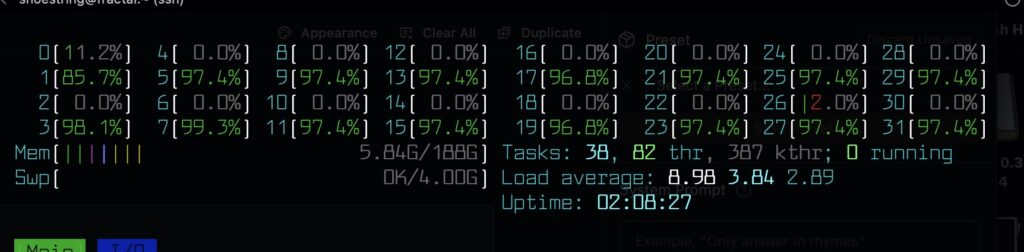
Other queries used all 32 cpu but only a couple were pegged in the 90 percentile.
Naturally I was curious how different running this on 2 GPUs would be. Blown away would be an overstatement, but I was happily surprised how well a 30b parameter model runs at what I would consider ‘normal’ token / second speed. The 30b models take a bit longer to load into memory compared to smaller models, but once loaded the responses are quick. Another interesting thing to check out is the difference between the quality of responses of 1b, 4b 20b and 30b model sizes. The smaller ones are unsurprisingly less detailed. However, the 30b, and even 20b ish models give pretty good responses comparable Duck Duck Go’s free AI service.
Leave a Reply